
Step 4 of 7
How to Send a Quotation to a Customer
A quotation only starts working once the customer has it. Maxvois lets you send it three ways, and a separate button records that you have sent it, so your list always shows what is still waiting.
Quick answer
What you'll need
- A saved quotation (the previous lesson).
- For email: the customer’s email address on their record.
Steps
-
Open the quotation
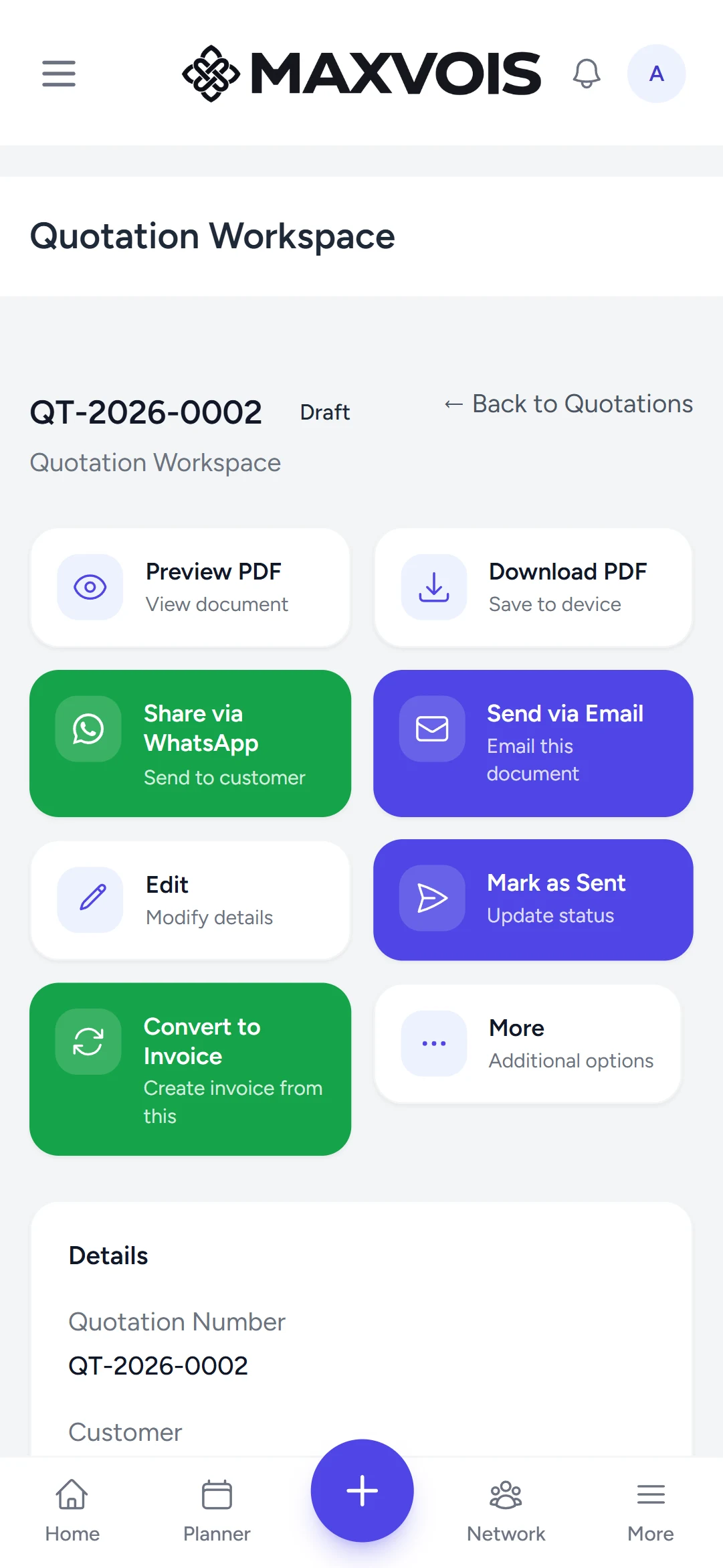
Right after Save Quotation you are already in the quotation workspace. Later, open Quotations and choose the quotation.
-
Check how it looks
Tap Preview PDF to see the document exactly as the customer will.
-
Send it
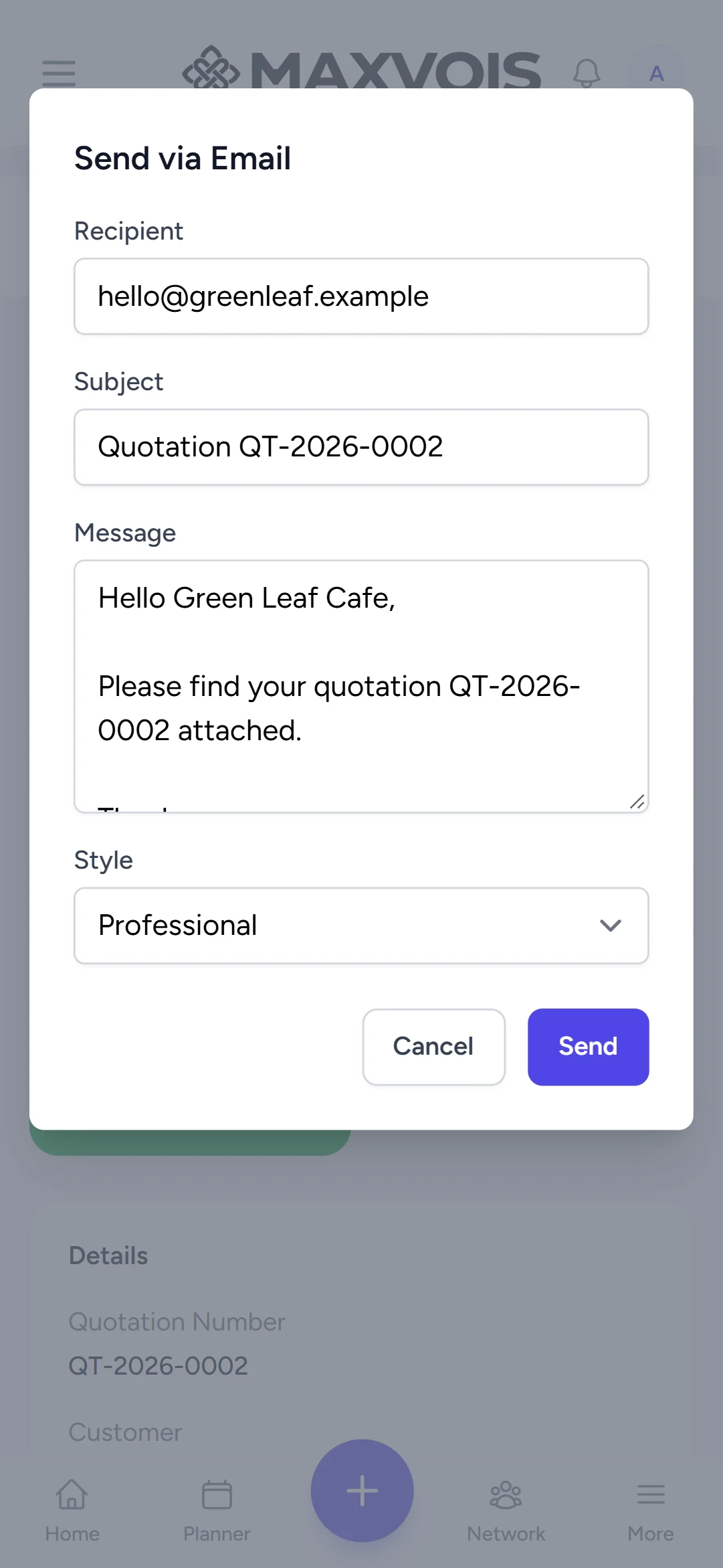
Share via WhatsApp opens WhatsApp with the message ready. Send via Email asks for the recipient and subject, then sends the quotation link. Download PDF saves the file so you can send it any way you like.
-
Mark as Sent
Tap Mark as Sent and confirm. The status changes from draft to sent, so you can tell at a glance which quotations are waiting for an answer.
Try it in Maxvois
Open QuotationsYou'll be asked to log in or start a free account first, then you'll land right here in the app.