
Step 5 of 7
How to Follow Up on a Quotation with Planner
Most quotations do not get an instant answer. Maxvois does not have a separate follow-up tool — you use Planner: a task with a reminder, linked to the customer, so the nudge comes when you choose.
Quick answer
What you'll need
- A quotation you have sent, and its customer.
Steps
-
Create the follow-up task
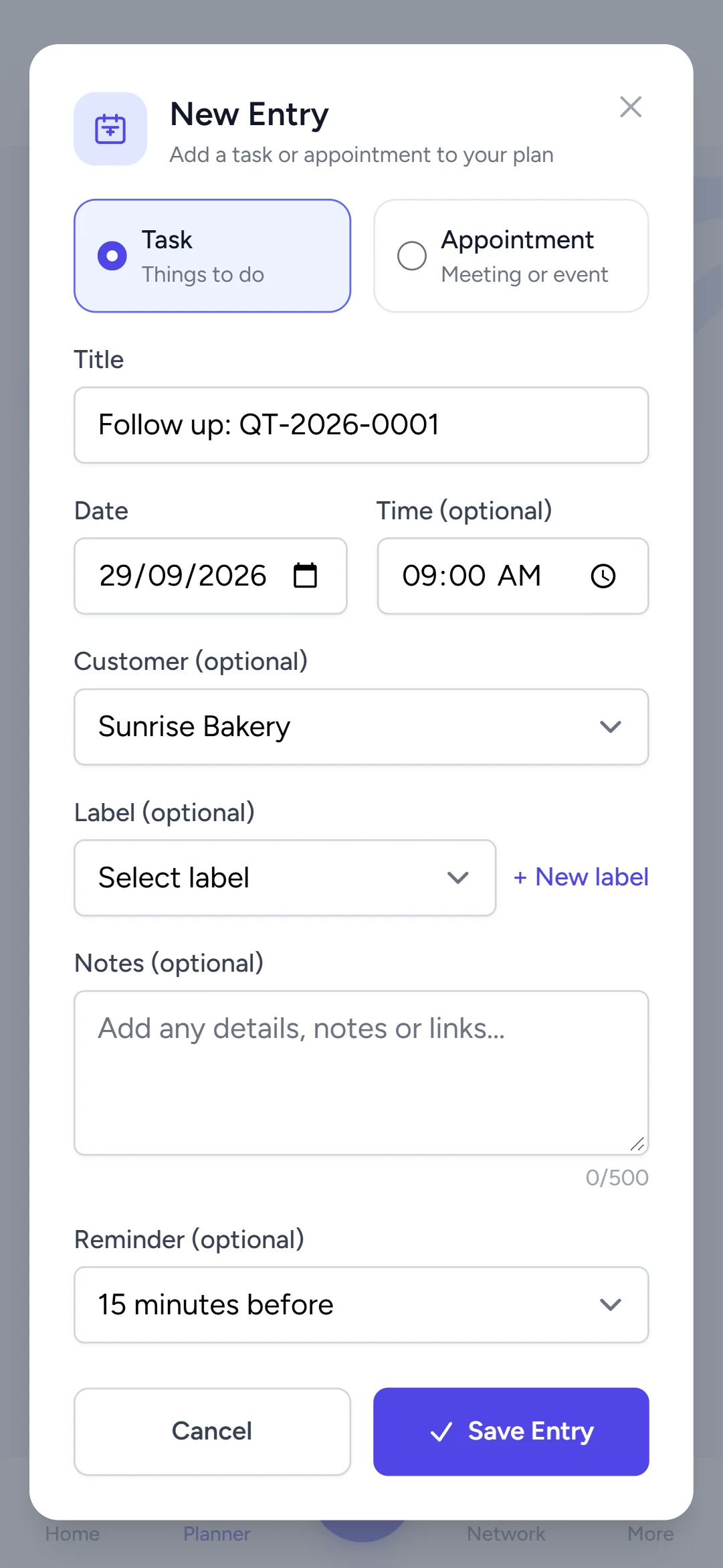
Open Planner, tap New Plan and choose Task. Use a title you will recognise, such as the quotation number and “follow up”.
-
Pick the customer and a date
Choose the Customer and set the Date — two or three days after sending is a common choice. Add a Time if it matters.
-
Add a reminder and save
Set a Reminder so your phone notifies you, then tap Save Entry. It will show under Upcoming and appear on Today when the day comes.
-
Close it out
When the customer answers, open the task’s ⋮ menu and choose Complete. If they say yes, carry on to the invoice.
Try it in Maxvois
Open PlannerYou'll be asked to log in or start a free account first, then you'll land right here in the app.