Step 6 of 7
How to Turn a Quotation into an Invoice
Pro
Available on Pro and ProMax
When a customer says yes, you should not retype anything. Converting the quotation creates the invoice with the same customer, items, tax and notes.
Quick answer
Open the quotation and tap Convert to Invoice. Confirm, and Maxvois opens the new invoice. The quotation becomes read-only.
What you'll need
- A quotation the customer has accepted.
- A plan that includes Invoices (Pro or ProMax).
Steps
-
Open the accepted quotation
Go to Quotations and choose it.
-
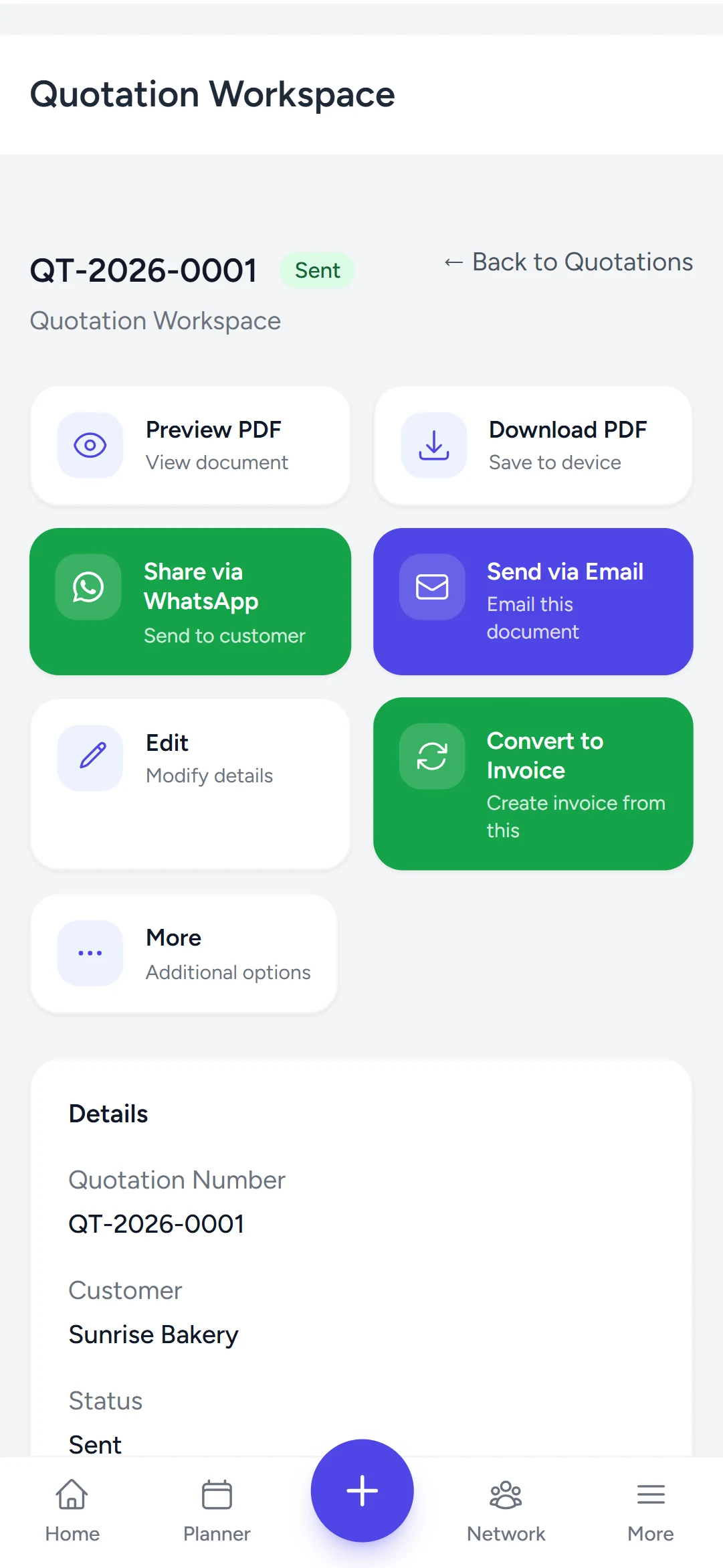
Tap Convert to Invoice
Confirm when asked. Everything carries over, and you can still adjust anything on the new invoice.
-
Review the invoice
The invoice workspace opens. Check the dates and totals; Mark as Sent and send it the same way you sent the quotation.
Try it in Maxvois
Pro
Available on Pro and ProMax
Convert a Quotation
You'll be asked to log in or start a free account first, then you'll land right here in the app.