
Step 7 of 7
How to Record a Payment and Generate a Receipt
Pro
Available on Pro and ProMax
When the customer pays, record it against the invoice. Maxvois tracks what is paid and what is outstanding, and can produce a receipt for each payment you record.
Quick answer
Open the invoice, tap Record Payment, enter the amount, date and method, tap Confirm Payment, then tap Generate Receipt next to that payment.
What you'll need
- An invoice for the customer.
- At least one payment method enabled for your business — the Method list is empty without one.
Steps
-
Open the invoice
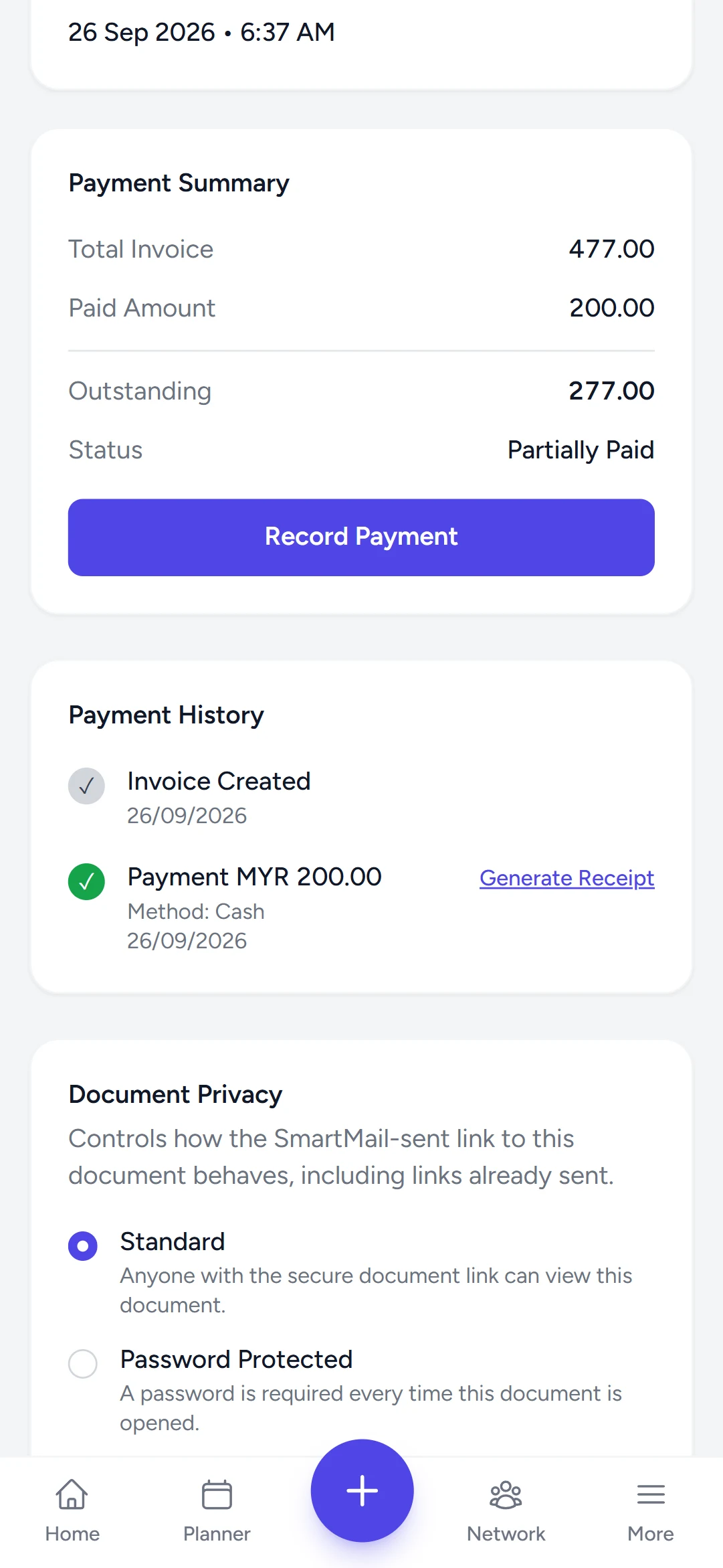
Go to Invoices and choose the invoice. The Payment Summary shows the total, what is paid and what is outstanding.
-
Record Payment
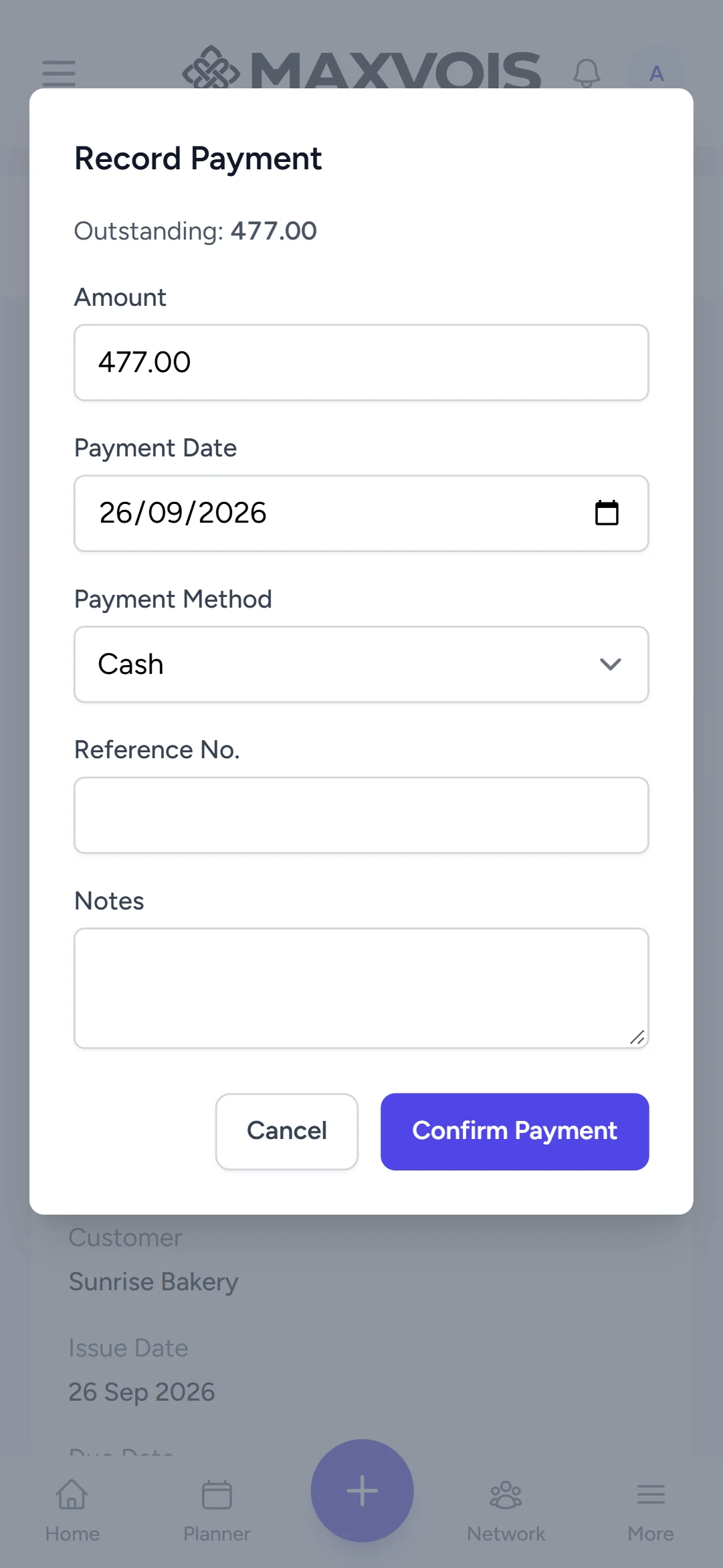
Tap Record Payment. Enter the Amount, the Payment Date and the Method; add a Reference No. if you have one. Tap Confirm Payment.
-
Check Payment History
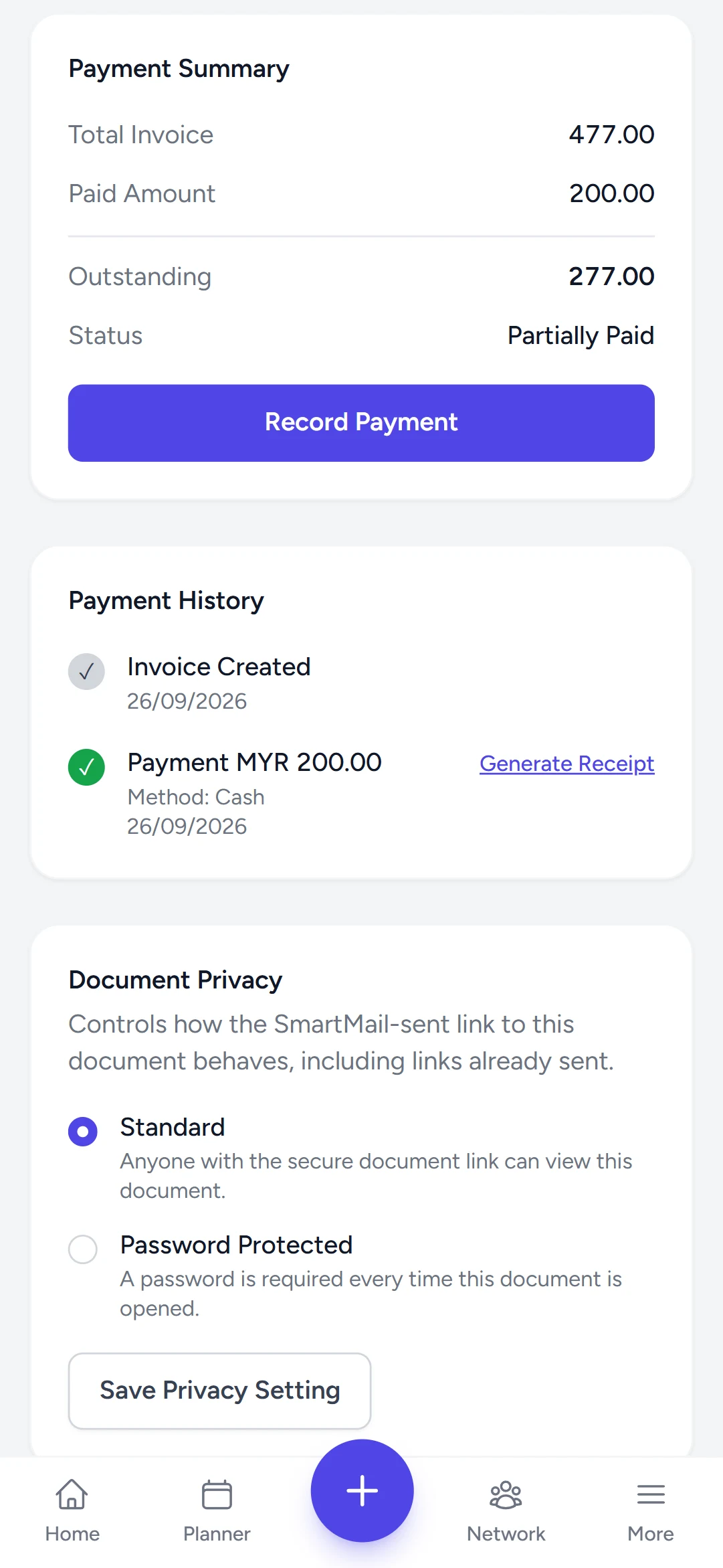
The payment appears under Payment History and the outstanding amount updates. A part payment simply leaves a balance.
-
Generate the receipt
Next to the payment, tap Generate Receipt. It becomes View Receipt. All receipts are also listed under Receipts.
Try it in Maxvois
Pro
Available on Pro and ProMax
Open Invoices
You'll be asked to log in or start a free account first, then you'll land right here in the app.