
Step 2 of 7
How to Plan an Appointment in Planner
Most sales start with a meeting or a call. Planning it in Maxvois — with a reminder and the customer attached — means you turn up prepared and can create the quotation straight from the plan.
Quick answer
What you'll need
- A customer, if you want the appointment linked to one (see the previous step). It is optional.
Steps
-
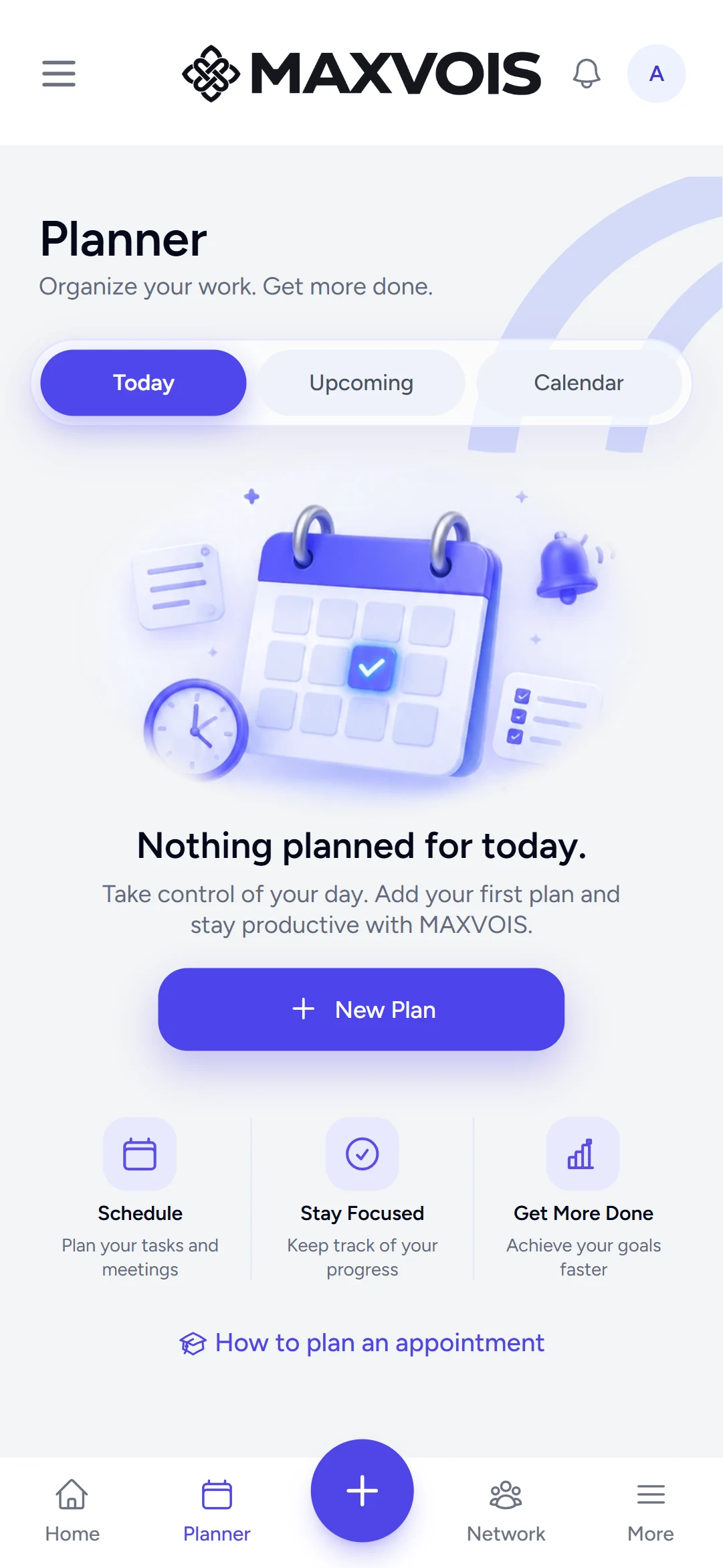
Open Planner and tap New Plan
Planner is in the bottom bar. On the Today tab, tap New Plan.
-
Choose Appointment and fill in the essentials
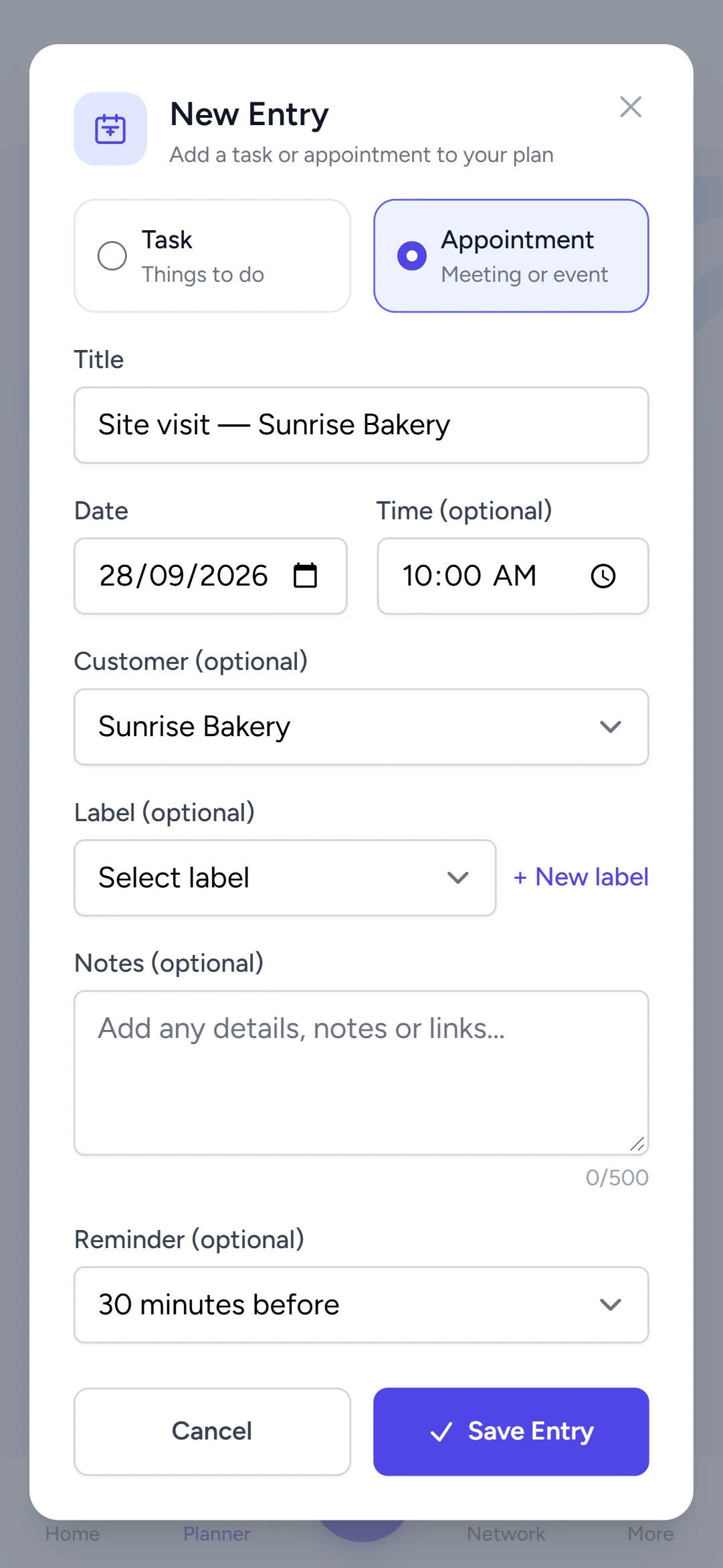
Pick Appointment (rather than Task). Enter a Title, the Date and an optional Time, then choose the Customer.
-
Add a reminder
Under Reminder choose when to be notified: at the event time, or 1, 5, 15 or 30 minutes, or 1 hour before. The first time, Android asks permission to send notifications — allow it so the reminder can reach you. Reminders follow your phone’s own clock and time zone.
-
Save Entry and check it
Tap Save Entry. The appointment shows under Today, Upcoming or Calendar depending on its date.
Try it in Maxvois
Open PlannerYou'll be asked to log in or start a free account first, then you'll land right here in the app.