Step 3 of 7
How to Create a Quotation
A quotation is your formal price proposal to a customer. Creating it in Maxvois gives you a clean, numbered document you can send and later convert into an invoice.
Quick answer
What you'll need
- A customer. If you have none, the form offers + Add Customer.
- Your items or services — pick saved Products, or type custom lines.
Steps
-
Start the quotation
Tap the + button and choose Create Quotation. Or open Quotations and tap Create Quotation. From a planned appointment, use its ⋮ menu → Create Quotation and the customer is filled in for you.
-
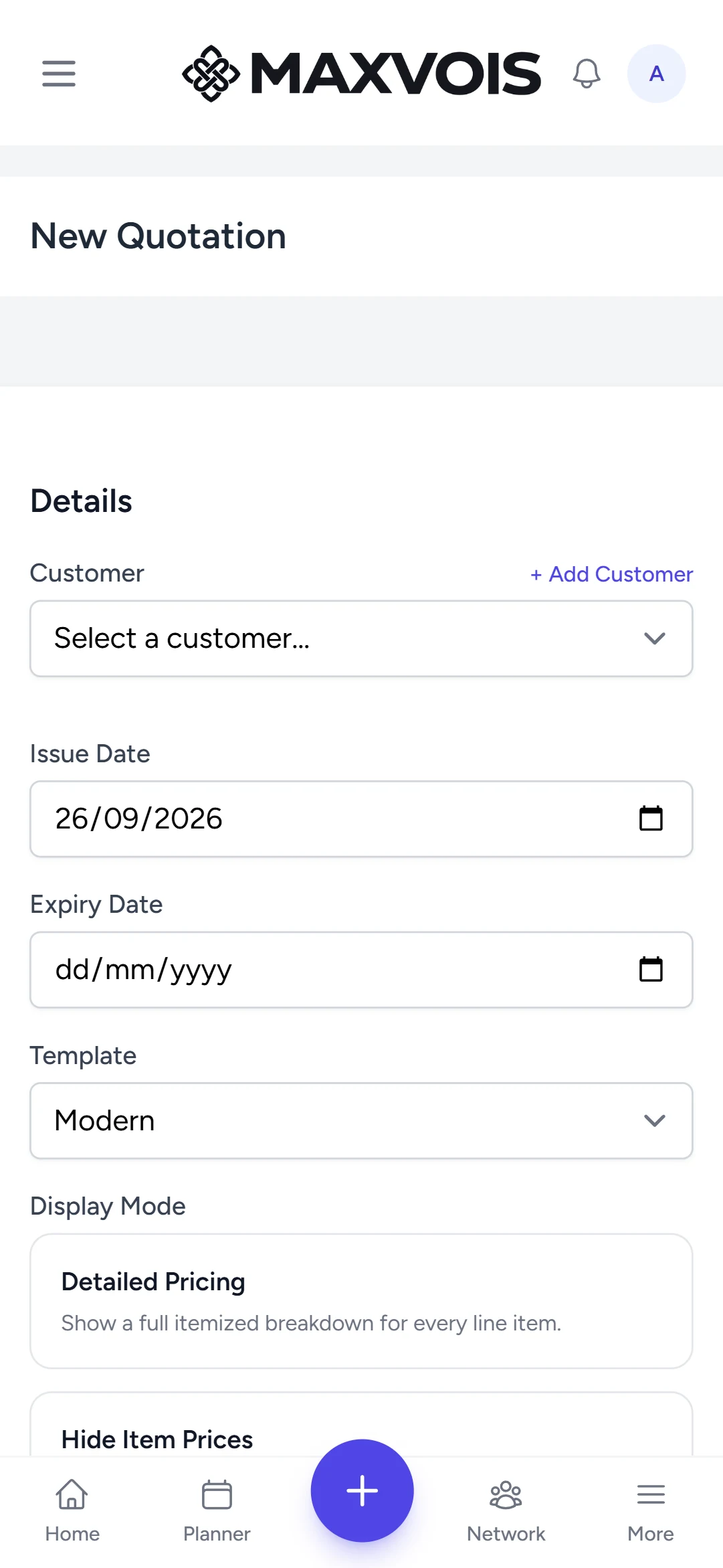
Select the customer
Open Select a customer… and choose one, or tap + Add Customer to create one on the spot.
-
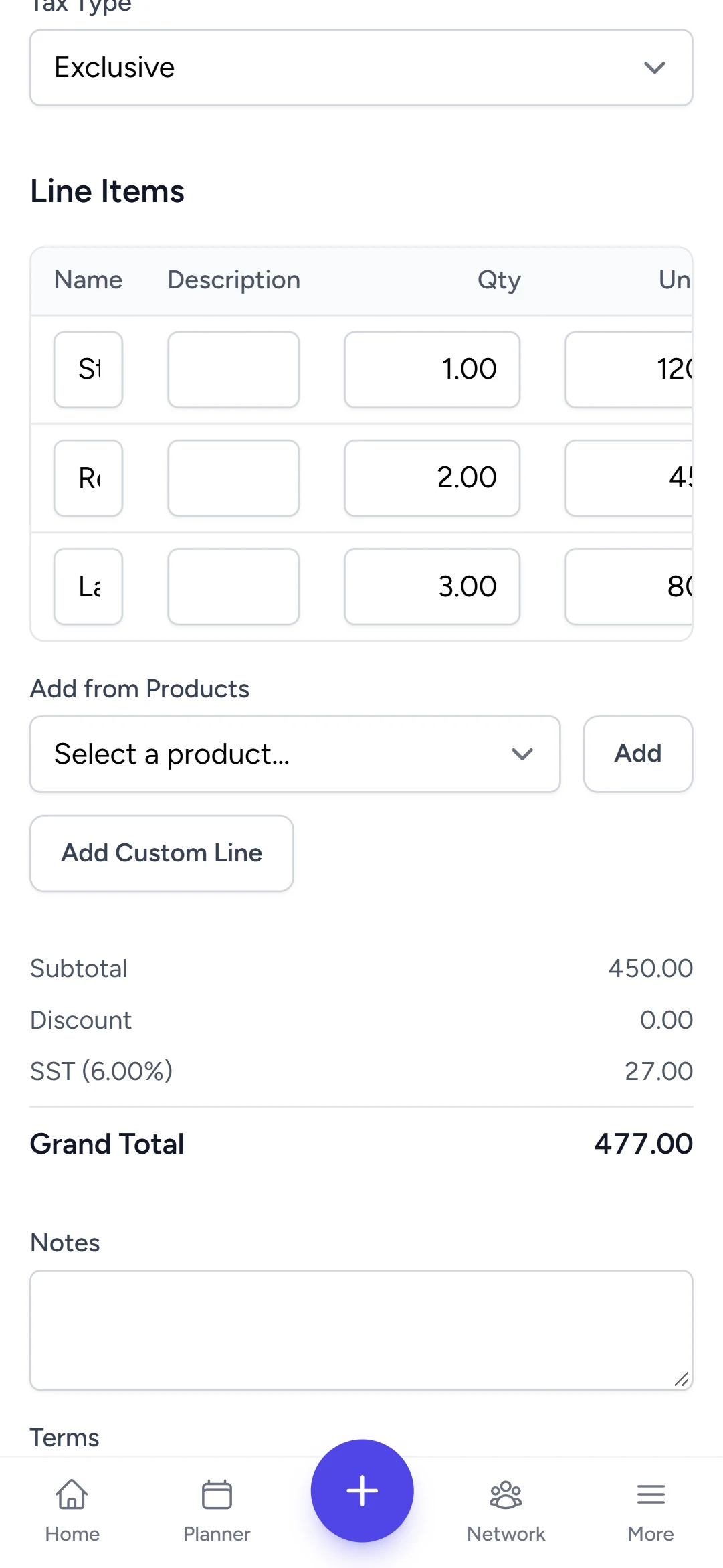
Add line items
Under Line Items, tap Add from Products to reuse a saved product, or Add Custom Line and enter the Description, Qty and Unit Price.
-
Set tax, discount and dates
Enter the Tax Rate (%) and choose Exclusive (added on top) or Inclusive (already in your prices). Add a Discount if you are giving one, and check the Expiry Date — how long the offer stands.
-
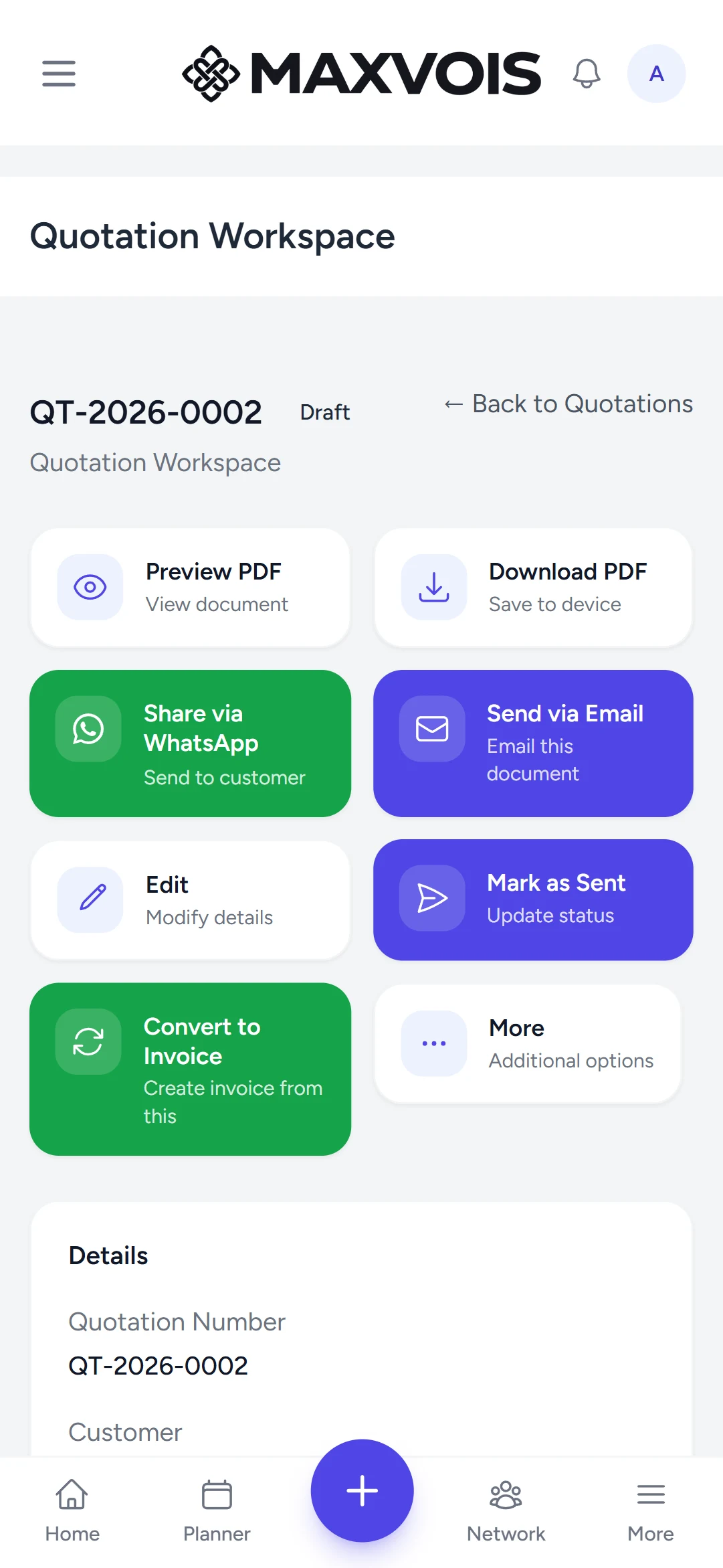
Save Quotation
Tap Save Quotation. It opens in the quotation workspace, ready to send.
Try it in Maxvois
Create a QuotationYou'll be asked to log in or start a free account first, then you'll land right here in the app.